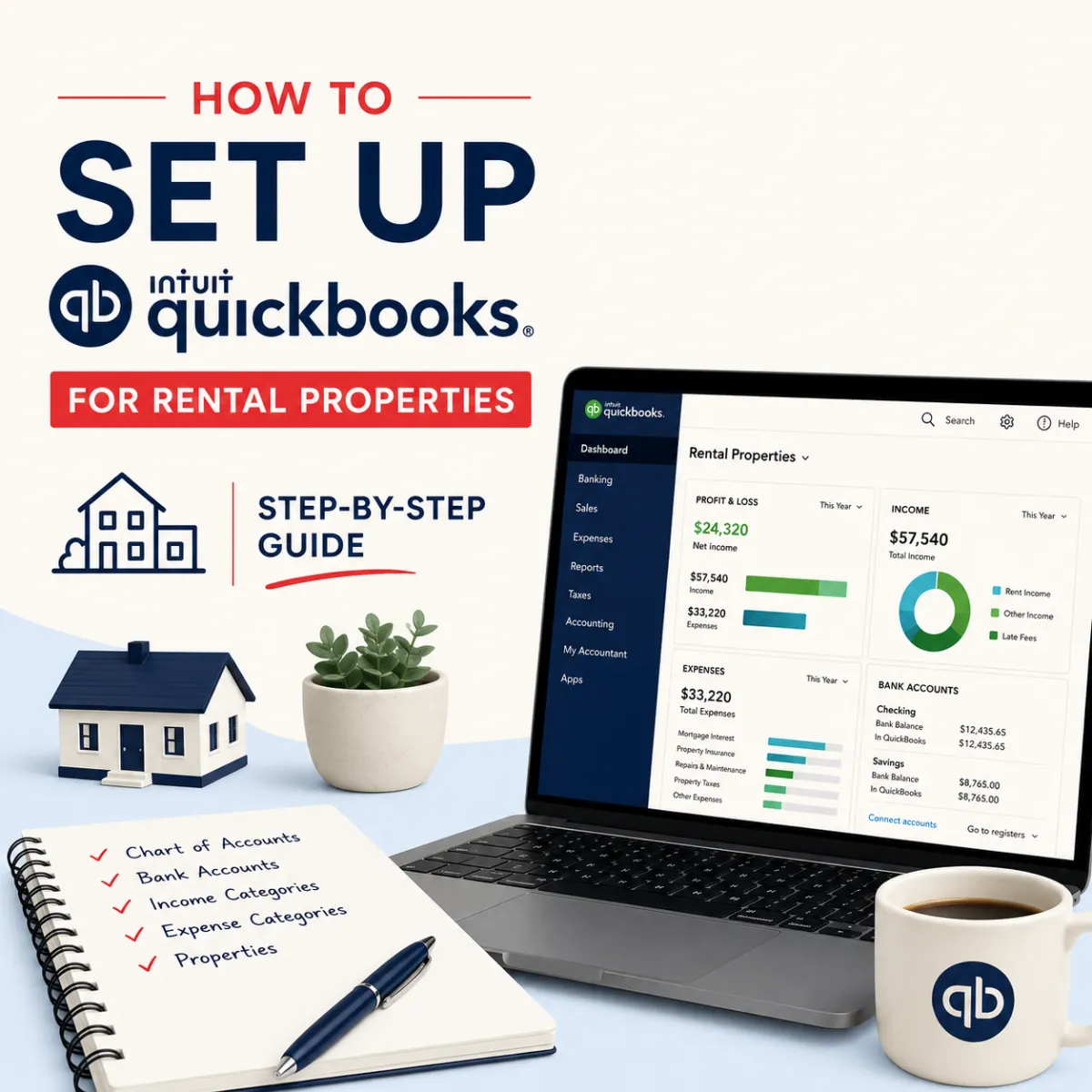
How to Set Up QuickBooks for Rental Properties (Step-by-Step Guide)
Most rental property owners set up QuickBooks wrong.
They use a generic chart of accounts. They mix personal and rental expenses. They can’t see profit per property. And when tax season hits, their CPA asks questions they can’t answer.
If you’ve ever stared at your QuickBooks dashboard thinking “I have no idea what’s going on here,” you’re not alone. The problem isn’t QuickBooks — it’s that QuickBooks Online wasn’t designed specifically for rental properties. It needs to be configured correctly.
This guide shows you the exact setup we use for rental property clients. By the end, you’ll have a QuickBooks system that tracks profit per property, catches tax deductions, and keeps your CPA happy.
Want us to set this up for you?
We configure QuickBooks for rental property owners across the US, UK, and Australia. Clean books by the 10th every month, per-property P&L reports, and tax-ready records year-round.
[Book a Free Call] or [Get the Free Checklist]
Why Standard QuickBooks Setup Fails for Rental Properties
QuickBooks Online is built for generic small businesses — coffee shops, consultants, e-commerce stores. It assumes one location, one revenue stream, and one set of expenses.
Rental properties are different:
Multiple properties = Multiple profit centers you need to track separately
Mixed personal/rental expenses = Mortgage interest, repairs, property taxes all need proper categorization
Capital improvements vs repairs = Tax treatment is completely different
Depreciation tracking = Required for every property, every year
If you’re using the default QuickBooks setup, you’re probably experiencing:
✗ Can’t see profit per property
✗ Expenses miscategorized (repairs vs capital improvements)
✗ Personal and rental transactions mixed together
✗ Missing tax deductions because categories are wrong
✗ Your CPA asks for clarification on 20+ transactions every year
Let’s fix that.
The 5-Step QuickBooks Rental Property Setup
Step 1: Turn On Class Tracking (Per-Property Reporting)
This is the #1 feature rental property owners miss.
Classes in QuickBooks let you tag every transaction with a property. Once enabled, you can run a Profit & Loss report filtered by class — which means you see profit per property.
How to enable:
Click Settings (gear icon) → Account and Settings
Go to Advanced tab
Find Categories section
Toggle Track classes to ON
Select “Warn me when a transaction isn’t assigned a class” (critical!)
Click Save
Now create a class for each property:
Click Settings → All Lists → Classes
Click New
Name it by address: “123 Maple St” or “Riverside Lofts 4B”
Repeat for each rental property
Pro tip: Also create a class called “Portfolio Level” for expenses that aren’t property-specific (like your bookkeeping fee, property management software, or legal fees for the entire portfolio).
Step 2: Set Up Your Rental Property Chart of Accounts
The chart of accounts is the backbone of your bookkeeping. Get this wrong and everything downstream breaks.
Here’s the 15-category chart of accounts we use for rental property clients:
INCOME ACCOUNTS
Rental Income (Account Type: Income)
Tag each transaction with the property class
This is your gross rent collected
Late Fees (Account Type: Income)
Separate from rental income for clarity
Other Rental Income (Account Type: Income)
Pet fees, parking fees, laundry income, utility reimbursements
EXPENSE ACCOUNTS
Advertising & Marketing (Account Type: Expense)
Listing fees (Zillow, Apartments.com)
Photography, staging
“For Rent” signs
Auto & Travel (Account Type: Expense)
Mileage to/from properties (track this!)
Parking fees at properties
Hotel stays for out-of-state properties
Cleaning & Maintenance (Account Type: Expense)
Routine cleaning between tenants
Landscaping, pest control
HVAC maintenance, plumbing repairs under $2,500
HOA Fees (Account Type: Expense)
Homeowners association dues
Special assessments
Insurance (Account Type: Expense)
Property insurance
Landlord liability insurance
Umbrella policies allocated to rental activity
Legal & Professional Fees (Account Type: Expense)
Attorney fees (evictions, lease reviews)
Bookkeeping and tax prep fees
Property management fees
Mortgage Interest (Account Type: Expense)
Only the interest portion of your mortgage payment
Principal goes to balance sheet, not P&L
Property Taxes (Account Type: Expense)
Real estate taxes paid to county/city
Repairs & Maintenance (Account Type: Expense)
Fixes that keep property in working order
Does NOT extend useful life (those are capital improvements)
Supplies (Account Type: Expense)
Light bulbs, cleaning supplies, small tools
Keys, locks, smoke detectors
Utilities (Account Type: Expense)
Water, electric, gas paid by landlord
Trash service
Internet (if provided to tenants)
Other Expenses (Account Type: Expense)
Anything that doesn’t fit above (use sparingly)
NOT INCLUDED IN OPERATING EXPENSES
Mortgage Principal → Goes to balance sheet (reduces loan balance)
Capital Improvements → Depreciated over 27.5 years, not expensed immediately
Depreciation → Your CPA calculates this at year-end, not tracked monthly
Step 3: Connect All Your Bank Accounts
QuickBooks works best when every transaction flows in automatically.
Connect these accounts:
Each property’s dedicated bank account (if you have them)
Your main business checking account (where rental income deposits)
Credit cards used for rental expenses
PayPal, Venmo, or Zelle (if tenants pay you this way)
Property management platform (Buildium, AppFolio, etc.) if it integrates
How to connect:
Go to Banking → Link Account
Search for your bank
Log in with your credentials
Select accounts to sync
Click Connect
QuickBooks will pull the last 90 days of transactions.
Step 4: Categorize Transactions with Classes
Now that transactions are flowing in, you need to categorize them correctly.
For every transaction, you assign: 1. Account (which category from your chart of accounts) 2. Class (which property it belongs to)
Example:
Transaction: $150 to “ABC Plumbing”
Account: Repairs & Maintenance
Class: 123 Maple St
Memo: “Fixed leaking kitchen faucet”
Do this for every transaction. Yes, it’s tedious at first. But after 2-3 months, QuickBooks learns your patterns and auto-suggests categories.
Common mistakes to avoid:
✗ Forgetting to assign a class (you won’t see it in per-property reports)
✗ Using “Repairs” for capital improvements (those should be capitalized)
✗ Categorizing entire mortgage payment as “Mortgage Interest” (only interest is deductible)
Step 5: Run Your First Per-Property Profit & Loss Report
This is the moment of truth. You’re about to see what each property actually earns.
How to run the report:
Go to Reports → Profit and Loss
Set date range (usually “This Year” or “Last Month”)
Click Customize
Under Rows/Columns, select “Compare by: Class”
Click Run Report
You’ll see columns for each property showing:
Rental Income
All expenses by category
Net Income (the number that matters)
What to look for:
✔ Positive net income on most properties (after expenses, before mortgage principal)
✔ Expenses properly categorized (nothing in “Other Expenses” unless truly other)
✔ Each property has transactions (if a column is blank, you forgot to assign classes)
Screenshot this report and send it to your CPA. This is exactly what they need.
Advanced QuickBooks Tips for Rental Properties
Use Sub-Accounts for Multi-Unit Properties
If you own a duplex, triplex, or small apartment building, create sub-accounts:
Example: - Class: Oakwood Duplex - Sub-class: Unit A - Sub-class: Unit B
Now you can see: - Profit for the entire building - Profit for each unit
Track Security Deposits Correctly
Security deposits are NOT income when received. They’re a liability (you owe them back).
Correct setup:
Create a liability account called “Security Deposits Held”
When deposit is received → Record as Bank Deposit to that liability account (NOT rental income)
When deposit is returned → Record as payment from that liability account
If you keep part/all of deposit → Transfer kept amount from liability account to “Rental Income”
Separate Personal vs Rental Property Transactions
If you accidentally paid a rental expense from your personal account:
Create an equity account called “Owner Contributions”
Record the expense normally (correct category + class)
Instead of linking it to a bank account, link it to “Owner Contributions”
This tracks how much personal money you’ve put into the business
Use Memorized Reports
Once you’ve customized your Profit & Loss by class report, save it:
Click Save customization
Name it “Monthly P&L by Property”
Select “Add this report to a group” → Create group called “Landlord Monthly Reports”
Now you can run your monthly reports with one click.
FREE DOWNLOAD: Rental Property Chart of Accounts Template
Want the exact 15-category chart of accounts we use for clients?
Download our free template with category descriptions and examples.
[Download Template] (Email required)
Common QuickBooks Mistakes Rental Property Owners Make
Mistake #1: Not Separating Personal and Rental Activity
The problem: You use one QuickBooks file for your rental properties AND your personal freelance income, or your spouse’s business.
The fix: Create a separate QuickBooks Online subscription just for rental properties. Cost: $30-60/month. Worth it for clarity and IRS compliance.
Mistake #2: Categorizing Capital Improvements as Repairs
The problem: You replace the entire roof ($15,000) and expense it all this year. The IRS says that’s a capital improvement that must be depreciated over 27.5 years.
The fix: Create a fixed asset account called “Building Improvements” and record large renovations there. Your CPA will handle depreciation.
Rule of thumb: - Repair (expense immediately): Fixes that maintain current condition (patch roof, fix leak) - Capital Improvement (depreciate): Extends useful life or adds value (new roof, kitchen remodel, new HVAC)
Mistake #3: Recording Entire Mortgage Payment as Expense
The problem: Your $2,000/month mortgage payment includes $1,200 principal + $800 interest. Only the $800 interest is deductible.
The fix: Split the payment: - $800 → “Mortgage Interest” (expense) - $1,200 → “Loan Payment” (reduces mortgage balance on balance sheet)
Your mortgage servicer’s monthly statement shows the split.
Mistake #4: Mixing Transactions from Multiple Properties in One Class
The problem: You categorize “Repairs & Maintenance” correctly but forget to assign the property class. Now the expense shows in your total P&L but not in the per-property report.
The fix: Enable “Warn me when a transaction isn’t assigned a class” (Step 1 above). QuickBooks will stop you from saving unclassified transactions.
Mistake #5: Not Reconciling Monthly
The problem: You connect your bank account but never reconcile. Six months later, you have duplicate transactions, missing transactions, and your CPA can’t file your taxes.
The fix: Reconcile every account, every month. It takes 10 minutes once you’re in the habit.
How to reconcile:
1. Go to Accounting → Reconcile
2. Select the account
3. Enter ending balance from your bank statement
4. Check off each transaction that appears on the statement
5. Click Finish now when difference = $0.00
How to Know If Your QuickBooks Is Set Up Correctly
Run through this checklist. If you can answer “yes” to all 5, your setup is solid:
✔ Can you run a Profit & Loss report filtered by property and see profit for each one? - If no: Class tracking isn’t enabled or transactions aren’t assigned to classes
✔ Are 90%+ of your expenses in specific categories (not “Other Expenses”)? - If no: Your chart of accounts is incomplete
✔ Does your mortgage interest expense match what your servicer says you paid? - If no: You’re recording the full payment instead of just interest
✔ Can you reconcile each account in under 15 minutes? - If no: You have duplicate or missing transactions
✔ Would your CPA be able to file your taxes from these books without asking you 20 questions? - If no: Your categorization needs work
If you answered “no” to any of these, you need help.
What to Do If Your QuickBooks Is Already a Mess
Option 1: Clean it up yourself - Block out 4-6 hours - Reconcile all accounts - Go through uncategorized transactions one by one - Reassign categories and classes where wrong - Run reports to verify
Option 2: Hire a bookkeeper to clean it up - Cost: $300-$1,500 depending on how messy - Typical timeline: 1-2 weeks - You get clean books back, ready to maintain going forward
Option 3: Start fresh for the new year - If prior years are a disaster, let your CPA handle those - Set up QuickBooks correctly for the current year only - Maintain it going forward
We specialize in cleanup projects for rental property owners. Most clients have 6-12 months of backlog. We catch them up in 2-3 weeks.
Should You Hire a Bookkeeper or Do It Yourself?
✔ DIY works if: - You own 1-3 properties - You have less than 50 transactions per month - You enjoy bookkeeping (or at least don’t hate it) - You have 2-3 hours per month to dedicate to it - You’re confident your categorization is correct
✗ Hire a bookkeeper if: - You own 4+ properties - You have more than 100 transactions per month - You dread opening QuickBooks - Your CPA asks questions you can’t answer - You’ve fallen behind by 3+ months
The average rental property owner spends 3-5 hours per month on bookkeeping. At $50-100/hour of your time, that’s $150-500/month in opportunity cost.
Our bookkeeping service starts at $199/month and delivers clean books by the 10th of every month. You get per-property P&L reports, tax-ready records, and a dedicated bookkeeper who knows your portfolio.
Want to see if it’s a fit?
Ready to Stop DIY Bookkeeping?
We handle monthly bookkeeping for rental property owners with 1–10 units.
You get:
✓ QuickBooks set up correctly for rental properties
✓ Clean books reconciled by the 10th every month
✓ Per-property Profit & Loss reports
✓ Tax-ready records your CPA can file without questions
✓ A dedicated bookkeeper who knows your portfolio
Starting at $159/month.
We’ll review your current setup, answer your questions, and show you exactly what working with us looks like. No pressure. No pitch. Just clarity.